Ever opened a new app or updated your favorite software only to be greeted by flashy animations, confusing menus, or tools you’ve never used—and likely never will? You’re not alone. Many software developers pack their products with features that sound impressive in marketing brochures but fall flat in real-world use. This article dives into 10 useless software features that clutter your experience—and contrasts them with 10 essential software features that actually improve productivity, security, and usability.
Whether you’re a casual user or a power professional, knowing what to ignore and what to embrace can save you time, reduce frustration, and help you get more value from the tools you rely on daily. Let’s cut through the noise and spotlight what truly matters.
Why Software Bloat Happens (And Why It Matters)
Software bloat isn’t accidental. It’s often the result of competition, feature creep, and the desire to appear innovative. Companies add bells and whistles to differentiate themselves, but this often leads to cluttered interfaces and slower performance. The real cost? Distraction, confusion, and wasted resources.
Understanding which features are genuinely useful—and which are just digital decoration—helps you make smarter choices. It also empowers you to demand better design from developers. After all, software should serve you, not the other way around.
The Hidden Cost of Useless Features
- Increased learning curve: More features mean more complexity, making onboarding harder for new users.
- Slower performance: Unused tools consume memory and processing power, slowing down your device.
- Higher risk of errors: Cluttered interfaces increase the chance of accidental clicks or misconfigurations.
- Reduced focus: Visual noise distracts from core tasks, lowering productivity.
Now that we’ve set the stage, let’s look at the features you can safely ignore—and the ones you shouldn’t live without.
10 Useless Software Features You Can Live Without
These features may look cool or sound impressive, but in practice, they offer little to no real value. Save your attention (and system resources) by skipping or disabling them.
1. Animated Splash Screens
Those fancy startup animations with logos spinning and music playing? They look nice, but they add seconds—or even minutes—to your launch time. For productivity tools, speed matters more than spectacle.
2. Built-in Social Media Feeds
Some productivity apps now include live Twitter or Instagram feeds. Unless you’re a social media manager, this is pure distraction. It encourages mindless scrolling instead of focused work.
3. Overly Complex Themes and Skins
Customization is great, but when themes require hours to configure or break functionality, they become a liability. Simple, clean interfaces are almost always more effective.
4. Auto-Generated Playlists or Content Recommendations
In non-entertainment software (like project management tools), AI-generated suggestions often miss the mark. They’re based on algorithms, not your actual workflow or priorities.
5. Voice Assistants That Don’t Understand Context
Voice commands sound futuristic, but if the assistant can’t interpret nuanced requests or requires exact phrasing, it’s more frustrating than helpful. True utility comes from accuracy, not novelty.
6. In-App Games or “Fun” Mini-Apps
Some enterprise software includes games to “boost engagement.” But employees aren’t there to play—they’re there to work. These features undermine professionalism and focus.
7. Excessive Notification Badges
Red dots everywhere might seem helpful, but they create notification fatigue. When everything feels urgent, nothing is. Smart filtering beats constant alerts.
8. Auto-Save Without Version History
Auto-save is great—until it overwrites your work without letting you revert. Without version control, this feature can actually cause data loss.
9. “Smart” Defaults That Aren’t Smart
Software that assumes your preferences—like auto-formatting text or rearranging layouts—often gets it wrong. User control should always override automated decisions.
10. Hidden Easter Eggs and Developer Jokes
While fun for developers, hidden jokes or secret commands add no functional value. They’re digital clutter that can confuse users or trigger unintended actions.
These features may have their place in entertainment apps, but in productivity, communication, or business tools, they’re better left out.
10 Essential Software Features You Actually Need
Now for the good stuff: the features that genuinely improve your experience. These aren’t just nice-to-haves—they’re must-haves for efficiency, safety, and usability.
1. Offline Mode
Whether you’re on a plane, in a subway, or dealing with spotty Wi-Fi, offline access ensures you can keep working. Syncing when back online is a bonus, but the core ability to function without internet is critical.
2. Keyboard Shortcuts and Customizable Hotkeys
Power users live by shortcuts. They save time, reduce mouse dependency, and streamline repetitive tasks. The best software lets you customize these to fit your workflow.
3. Dark Mode with Eye Comfort Settings
Dark mode reduces eye strain, especially in low-light environments. But it’s only useful if it’s well-implemented—adjustable contrast, true black backgrounds, and reduced blue light make all the difference.
4. Real-Time Collaboration Tools
Shared editing, live cursors, comment threads, and version tracking are game-changers for teamwork. They eliminate email chains and version confusion, keeping everyone on the same page.
5. Strong Search and Filtering
A powerful search function—with filters, tags, and Boolean operators—helps you find files, messages, or data instantly. Without it, even the best-organized software becomes a maze.
6. Two-Factor Authentication (2FA) and Biometric Login
Security isn’t optional. 2FA, fingerprint login, or facial recognition add critical layers of protection. In an age of data breaches, these features are non-negotiable.
7. Export and Import Options (Multiple Formats)
You should own your data. The ability to export in PDF, CSV, JSON, or other standard formats ensures portability and backup. Import tools make onboarding and migration seamless.
8. Customizable Dashboards and Widgets
One size doesn’t fit all. The best software lets you build a dashboard that shows only what you need—whether it’s task lists, calendars, analytics, or weather updates.
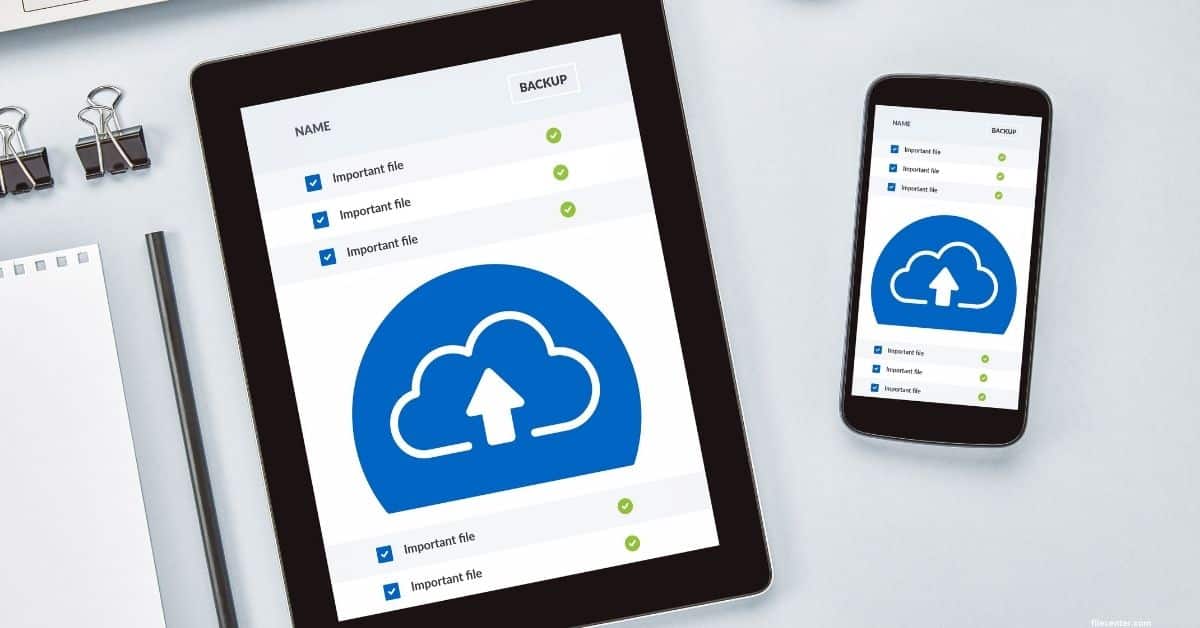
9. Auto-Backup with Cloud Sync
Automatic backups prevent disaster. When paired with secure cloud sync, they ensure your work is safe even if your device fails. Look for end-to-end encryption for added peace of mind.
10. Accessibility Features
Screen reader support, high-contrast modes, keyboard navigation, and captioning aren’t just for some users—they’re for everyone. Inclusive design benefits all, especially as we age or face temporary impairments.
These features aren’t flashy, but they’re foundational. They reflect a commitment to usability, security, and user empowerment.
How to Spot the Difference: Useless vs. Useful Features
Not sure if a feature is worth your time? Ask these three questions:
- Does it solve a real problem I have? If not, it’s probably fluff.
- Does it save me time or reduce effort? Useful features streamline, not complicate.
- Can I turn it off if I don’t like it? Good software respects user choice.
Features that pass this test are likely worth keeping. Those that don’t? Disable, hide, or uninstall them.
Pro Tip: Use the “30-Day Rule”
When you encounter a new feature, give it 30 days. If you haven’t used it meaningfully by then, it’s probably not essential. This helps you avoid feature fatigue and stay focused on what truly matters.
Key Takeaways
- Useless features often prioritize style over substance, adding clutter without value.
- Essential features focus on functionality, security, and user control.
- Always evaluate new tools based on your actual needs—not marketing hype.
- Disable or ignore features that distract, slow down, or complicate your workflow.
- Demand software that respects your time, data, and attention.
Remember: the best software doesn’t try to do everything. It does a few things exceptionally well—and gets out of your way.
FAQ
Q: Are all new software features bad?
A: Not at all. Many updates bring meaningful improvements. The key is discernment. Ask whether the feature solves a real problem or just adds noise. Focus on updates that enhance performance, security, or usability.
Q: How can I disable useless features in my current software?
A: Most apps have settings or preferences menus where you can turn off animations, notifications, or experimental tools. Look for “Advanced,” “Privacy,” or “Performance” sections. Some features may require third-party plugins or custom configurations.
Q: Should I avoid software with lots of features?
A: Not necessarily. The issue isn’t the number of features—it’s their relevance and implementation. Great software offers depth without clutter. Look for tools that allow customization and let you hide what you don’t need.
Final Thoughts: Choose Wisely, Use Wisely
Software should make your life easier, not more complicated. In a world overflowing with apps, plugins, and updates, it’s easy to get lost in the noise. But by focusing on what truly matters—functionality, security, and simplicity—you can build a digital toolkit that actually serves you.
Next time you install a new app or update your current one, take a moment to assess: Is this feature useful, or just useless? Your productivity—and sanity—will thank you.
Now go clean up your software stack. Your future self will appreciate the clarity.