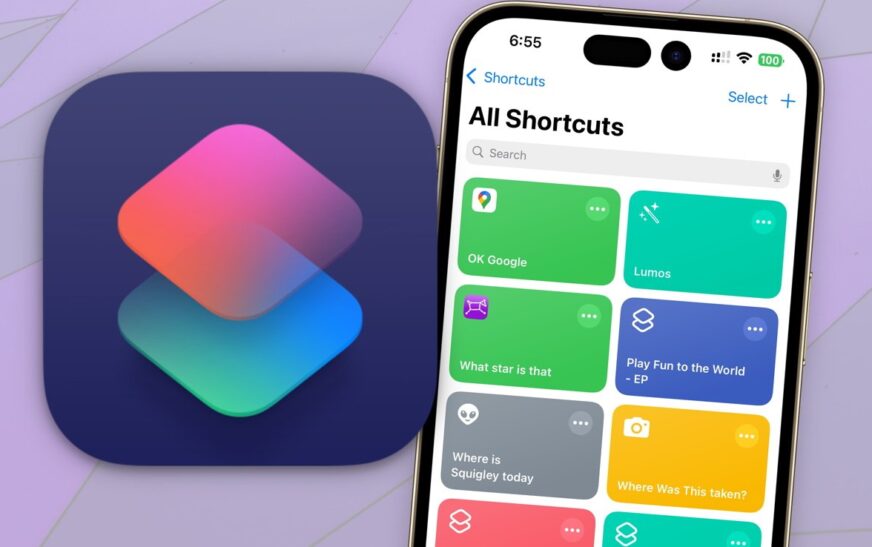
Imagine turning your iPhone into a personal assistant that handles repetitive tasks, saves time, and boosts productivity—all with a single tap. That’s exactly what the iPhone Shortcuts app delivers. Whether you’re a busy professional, a student, or just someone who loves efficiency, mastering this powerful tool can transform how you use your device. In this ultimate guide, we’ll walk you through everything you need to know—from setup to advanced automation—so you can unlock the full potential of the Shortcuts app and make your iPhone work smarter, not harder.
What Is the iPhone Shortcuts App?
The iPhone Shortcuts app is Apple’s built-in automation tool that lets you create custom workflows to perform multiple actions with one tap or voice command. Originally launched as a standalone app in 2018 and later integrated into iOS, it allows users to streamline daily routines, control smart home devices, manage files, send messages, and much more—without opening multiple apps.
Think of it as your digital Swiss Army knife: compact, versatile, and incredibly useful once you know how to use it. Whether you want to start your morning routine with a single command or automatically log your workouts, the Shortcuts app makes it possible.
Why You Should Use the iPhone Shortcuts App
Most iPhone users barely scratch the surface of what their device can do. The Shortcuts app bridges that gap by turning complex, multi-step tasks into simple, repeatable actions. Here’s why it’s worth your time:
- Saves time: Automate repetitive actions like sending daily check-in messages or backing up photos.
- Boosts productivity: Chain together app functions, web searches, and system settings in one flow.
- Personalizes your iPhone: Create custom shortcuts tailored to your lifestyle and preferences.
- Works with Siri: Trigger shortcuts using voice commands for hands-free convenience.
- Integrates with other apps: Connect with third-party apps like Spotify, WhatsApp, Google Drive, and more.
Once you start using shortcuts, you’ll wonder how you ever lived without them.
How to Get Started with the iPhone Shortcuts App
Step 1: Open the Shortcuts App
The Shortcuts app comes pre-installed on all iPhones running iOS 13 or later. If you can’t find it, swipe down from the top-right corner to open Spotlight Search and type “Shortcuts.” Tap to launch.
Once opened, you’ll see three tabs at the bottom: My Shortcuts, Gallery, and Automation. Start by exploring the Gallery—it’s packed with ready-made shortcuts for common tasks.
Step 2: Try a Pre-Built Shortcut
The Gallery is your best friend when starting out. It features shortcuts organized by category—like Productivity, Travel, Health, and Smart Home. For example, try the “Good Morning” shortcut, which can read the weather, play your favorite playlist, and open your calendar—all at once.
To use one, simply tap it, then hit “Add Shortcut.” You can customize it before saving by adjusting actions, inputs, or triggers.
Step 3: Create Your First Custom Shortcut
Ready to build your own? Tap the “+” button in the top-right corner of the My Shortcuts tab. This opens the shortcut editor, where you can add actions like “Get Current Location,” “Send Message,” or “Play Music.”
For example, create a “Coffee Break” shortcut that:
- Sets a 15-minute timer
- Plays relaxing music
- Sends a notification: “Time to get back to work!”
Tap “Next,” name your shortcut, choose an icon, and save. Now you can run it from the app, your home screen, or Siri.
Top iPhone Shortcuts App Features You Need to Know
1. Personal Automations
Personal Automations let you trigger shortcuts based on specific conditions—like time of day, location, or app usage. For example, you can set a shortcut to:
- Turn on Do Not Disturb when you arrive at work
- Send a text to your partner when you leave the office
- Start a workout playlist when you open the Fitness app
To create one, go to the Automation tab, tap “+”, select “Create Personal Automation,” and choose your trigger. Then add actions and customize settings like notifications or confirmation prompts.
2. Home Screen Integration
Want quick access? Add any shortcut to your home screen. Just open the shortcut, tap the three dots (•••), select “Add to Home Screen,” pick an icon and name, and confirm. Now it’s just a tap away—no need to open the Shortcuts app.
3. Siri Voice Commands
Make your shortcuts hands-free by assigning them to Siri phrases. For instance, say “Hey Siri, I’m home” to trigger a shortcut that turns on lights, plays music, and reads your messages.
To set this up, open the shortcut, tap the three dots, go to “Add to Siri,” record your phrase, and save. It’s like having a personal assistant built into your iPhone.
4. Share and Import Shortcuts
Found a cool shortcut online? You can import it directly into your app. Many creators share shortcuts via links or QR codes. Just tap the link on your iPhone, and it will open in the Shortcuts app for instant import.
You can also share your own creations. Tap the three dots on any shortcut, select “Share,” and send it via Messages, email, or social media.
Advanced iPhone Shortcuts App Tips for Power Users
Use Variables and Logic
For more complex workflows, use variables to store and manipulate data. For example, capture your current location, calculate travel time, and send an ETA to a contact—all in one shortcut.
You can also add conditional logic (“If/Then” statements) to make decisions. For instance: “If it’s raining, send a text saying ‘Bring an umbrella.’”
Integrate with Third-Party Apps
The Shortcuts app supports hundreds of apps, including:
- Spotify: Play playlists, skip tracks, or add songs to your library
- Google Drive: Upload files, create folders, or share documents
- WhatsApp: Send messages or status updates
- Notion: Create new notes or update databases
- IFTTT: Connect with smart home devices and web services
Check each app’s support for Shortcuts in their settings or documentation. The more apps you connect, the more powerful your automations become.
Use the “Run Shortcut” Action
Chain multiple shortcuts together using the “Run Shortcut” action. This lets you build modular workflows—like a master “Morning Routine” shortcut that runs sub-shortcuts for weather, news, and calendar.
Leverage the “Get Contents of URL” Action
Fetch data from websites or APIs to create dynamic shortcuts. For example, pull stock prices, weather forecasts, or flight statuses and display them in a notification or message.
Common Use Cases for the iPhone Shortcuts App
1. Morning Routine Automation
Start your day right with a single tap. A well-designed morning shortcut can:
- Read today’s weather and calendar events
- Play your favorite morning playlist
- Turn off Do Not Disturb
- Open your news app or podcast
2. Smart Home Control
If you use HomeKit-compatible devices, shortcuts can control lights, thermostats, locks, and cameras. Create a “Good Night” shortcut that turns off all lights, locks doors, and sets the thermostat to sleep mode.
3. Travel and Commute Helpers
Automate travel tasks like:
- Checking flight status and gate info
- Sending your ETA to a contact
- Opening maps with your destination
- Starting a playlist for the drive
4. Health and Fitness Tracking
Log workouts, track water intake, or remind yourself to stand up. For example, create a shortcut that logs a 30-minute walk in the Health app and sends a motivational message.
5. Social Media and Content Creation
Speed up posting on Instagram, Twitter, or TikTok. A shortcut can resize images, add captions, and open the app—ready to post.
Key Takeaways: Master the iPhone Shortcuts App
- The iPhone Shortcuts app turns complex tasks into one-tap actions, saving time and boosting efficiency.
- Start with the Gallery, then build custom shortcuts using the intuitive editor.
- Use Personal Automations to trigger actions based on time, location, or app usage.
- Add shortcuts to your home screen or Siri for instant access.
- Integrate with third-party apps like Spotify, Google Drive, and WhatsApp for advanced workflows.
- Leverage variables, logic, and chaining to create powerful, dynamic automations.
- Share and import shortcuts to learn from the community and expand your toolkit.
FAQ: iPhone Shortcuts App
Can I use the iPhone Shortcuts app on older iOS versions?
The Shortcuts app requires iOS 12 or later. However, full functionality—including Personal Automations and Siri integration—is available starting from iOS 13. If you’re on an older version, consider updating your iPhone for the best experience.
Are shortcuts safe to use?
Yes, shortcuts run within Apple’s secure environment. However, always review shortcuts before importing them, especially from third-party sources. Avoid shortcuts that request unnecessary permissions or access sensitive data without clear justification.
Can I run shortcuts automatically without tapping?
Yes, through Personal Automations. You can set triggers like “When I arrive at a location” or “At a specific time” to run shortcuts automatically. Note that some automations may require confirmation for security reasons.
Final Thoughts: Make Your iPhone Work for You
The iPhone Shortcuts app isn’t just a hidden gem—it’s a game-changer for anyone who wants to get more out of their device. From simple time-savers to complex automations, it empowers you to customize your iPhone experience like never before.
Don’t let its simplicity fool you. Under the hood, the Shortcuts app is a powerful automation engine that can handle everything from daily routines to smart home control. The best part? You don’t need to be a tech expert to use it. With a little experimentation, you’ll be creating shortcuts that feel like magic.
So go ahead—open the app, try a few pre-built shortcuts, and start building your own. Your future self will thank you every time you tap that shortcut and watch your iPhone do the work.
Ready to automate your life? The iPhone Shortcuts app is waiting.