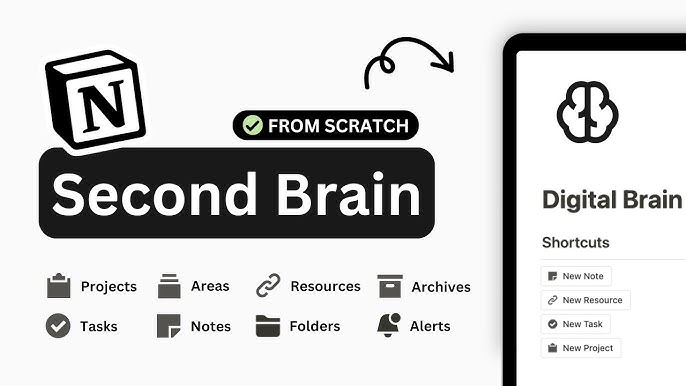
Ever feel like your brain is overflowing with ideas, tasks, and information—but you can’t seem to organize any of it? You’re not alone. That’s why thousands of professionals, students, and creatives are turning to Notion to build a “Second Brain”: a personalized digital system that captures, organizes, and retrieves knowledge effortlessly. If you’ve ever wondered how to build a Second Brain in Notion from scratch, this guide is your blueprint. No fluff, no jargon—just actionable steps to turn chaos into clarity.
Imagine having every note, project, goal, and inspiration stored in one place—searchable, structured, and always accessible. That’s the power of a Second Brain. And the best part? You don’t need to be a tech wizard to create one. With Notion’s flexible workspace, you can design a system that fits your brain, not the other way around.
In this article, you’ll learn exactly how to build a Second Brain in Notion from scratch—starting with the core philosophy, setting up your foundation, and populating it with content that actually helps you think, create, and achieve more.
What Is a “Second Brain” and Why Use Notion?
The term “Second Brain” comes from productivity expert Tiago Forte’s methodology, which teaches people how to offload mental clutter by creating an external system for storing and processing information. Think of it as your mind’s backup drive—except it’s smarter, more organized, and always ready when you need it.
Notion is the perfect tool for this because it combines notes, databases, tasks, calendars, and wikis into one seamless platform. Unlike rigid apps that force you into templates, Notion lets you build a system that evolves with your thinking. Whether you’re managing a startup, studying for exams, or planning a novel, your Second Brain adapts to your workflow—not the other way around.
By building a Second Brain in Notion, you’re not just organizing files. You’re creating a thinking partner—a dynamic space where ideas grow, connections form, and creativity thrives.
Core Principles of a Second Brain
- Capture Everything: Save ideas, quotes, articles, and insights the moment they strike—no matter how small.
- Organize for Action: Structure information so it’s easy to find and use, not just stored.
- Distill for Clarity: Break down complex ideas into simple, reusable notes.
- Express Creatively: Use your stored knowledge to produce new work—blogs, projects, presentations.
These four steps—Capture, Organize, Distill, Express—form the backbone of the Second Brain methodology. Notion supports each phase with powerful tools like quick capture buttons, relational databases, and nested pages.
Step 1: Set Up Your Notion Workspace Foundation
Before you start dumping notes into Notion, you need a solid foundation. Think of this as building the frame of a house—without it, everything collapses.
Create Your Main Dashboard
Start by creating a new page in Notion and naming it “Second Brain” or “My Knowledge Hub.” This will be your central command center. Use a clean layout with clear sections:
- Quick Capture: A simple text box or toggle list where you jot down fleeting ideas.
- Today’s Focus: A to-do list for daily priorities.
- Recent Notes: A linked database showing your latest entries.
- Projects & Goals: A high-level view of active initiatives.
Use Notion’s drag-and-drop blocks to arrange these sections. Add icons and colors to make it visually intuitive. A well-designed dashboard reduces friction—so you actually use your system instead of ignoring it.
Build Your Core Databases
Databases are the engines of your Second Brain. They let you store, filter, and connect information dynamically. Start with these four essential databases:
- Notes Database: For all your ideas, insights, and reflections. Include properties like “Type” (e.g., idea, quote, lesson), “Status” (e.g., raw, processed), and “Tags” for topics.
- Tasks Database: For actionable items. Link tasks to projects, set due dates, and track progress.
- Projects Database: For ongoing work. Each project can have its own page with goals, tasks, and related notes.
- Resources Database: For saved articles, books, videos, and tools. Add a “Status” property (e.g., to read, reading, completed).
Use templates within each database to speed up entry. For example, a “New Note” template might include prompts like “What’s the core idea?” and “How can I apply this?”
Step 2: Capture Information the Smart Way
The first habit of a strong Second Brain is consistent capture. But not all capture is created equal. You want to save useful information—not digital junk.
Use the “PARA” Method for Organization
Tiago Forte’s PARA system helps you sort information into four practical categories:
- Projects: Short-term efforts with a clear outcome (e.g., “Launch website,” “Write book chapter”).
- Areas: Long-term responsibilities (e.g., “Health,” “Career,” “Finances”).
- Resources: Topics you’re learning about (e.g., “SEO,” “Psychology,” “Cooking”).
- Archives: Inactive but valuable content (e.g., completed projects, old notes).
In Notion, create a main page for each PARA category. Then, link your databases to these pages. For example, your “Projects” page can display a filtered view of your Tasks and Notes databases where “Category = Project.”
Set Up Quick Capture Tools
The easier it is to capture, the more you’ll do it. Use these Notion features to streamline input:
- Mobile App: Keep Notion open on your phone. Use the “+ New Page” button to instantly save ideas.
- Web Clipper: Install Notion’s browser extension to save articles, videos, and PDFs with one click.
- Email Integration: Forward important emails to your Notion inbox using the “Email to Page” feature.
- Voice Notes: Dictate ideas using your phone’s voice recorder, then transcribe and paste into Notion.
Pro tip: Create a “Inbox” database for raw, unprocessed entries. Review it weekly to sort, tag, and move items into the right places.
Step 3: Organize and Distill Your Knowledge
Capturing is only half the battle. The real magic happens when you organize and distill your information into actionable insights.
Process Your Inbox Weekly
Set aside 30–60 minutes each week to clean your Inbox. Follow this workflow:
- Review: Read each entry. Ask: “Is this useful? Does it spark an idea?”
- Decide: Move it to the right PARA category or database.
- Distill: Rewrite the note in your own words. Summarize the core idea in one sentence.
- Connect: Link it to related notes, projects, or goals.
This process turns scattered thoughts into structured knowledge. Over time, you’ll build a library of insights you can actually use.
Use Tags and Relations to Build Connections
Notion’s tagging and relational features let you create a web of knowledge. For example:
- Tag a note with “#creativity” and “#writing” to find all related ideas later.
- Link a task to a project page so you see context at a glance.
- Use a “Related Notes” property to connect insights across topics.
The more connections you make, the more your Second Brain starts to “think” for you—surfacing relevant ideas when you need them.
Step 4: Express and Create from Your Second Brain
A Second Brain isn’t just for storage—it’s a launchpad for creation. The final step is using your stored knowledge to produce new work.
Turn Notes into Content
Got a note about “the power of habits”? Turn it into a blog post, tweet thread, or video script. Use your Notes database as a content idea engine. Filter by “Type = Idea” and “Status = Ready to Use” to find inspiration.
Create templates for common outputs:
- Blog post template with sections for intro, key points, examples, and call-to-action.
- Meeting notes template with agenda, decisions, and action items.
- Project plan template with goals, timeline, and resources.
When you sit down to create, your Second Brain gives you everything you need—no blank-page syndrome.
Review and Reflect Monthly
Schedule a monthly review to assess your progress. Ask:
- What did I learn this month?
- Which projects moved forward?
- What habits are working (or not)?
- How can I improve my system?
Use Notion’s calendar or a dedicated “Monthly Review” page to track insights. Over time, this reflection deepens your thinking and sharpens your focus.
Key Takeaways: Your Second Brain Blueprint
- Start simple: Build a dashboard and four core databases (Notes, Tasks, Projects, Resources).
- Use PARA: Organize everything into Projects, Areas, Resources, and Archives.
- Capture daily: Use quick tools like the mobile app, web clipper, and voice notes.
- Process weekly: Clean your inbox, distill notes, and make connections.
- Create regularly: Turn insights into blogs, projects, and presentations.
- Review monthly: Reflect on progress and refine your system.
Building a Second Brain in Notion from scratch isn’t about perfection—it’s about progress. Start small, stay consistent, and let your system grow with you.
FAQ: Common Questions About Building a Second Brain in Notion
How long does it take to build a Second Brain in Notion?
You can set up the basic structure in a few hours. But the real value comes from daily use and weekly maintenance. Think of it as a habit, not a one-time project.
Do I need to use all of Notion’s features?
No. Start with the essentials: pages, databases, and templates. Add advanced features like formulas or automations only when you need them.
What if I get overwhelmed by my own system?
That’s normal. Simplify. Delete unused pages, merge duplicate databases, and focus on what actually helps you think and act. Your Second Brain should reduce stress, not add to it.
Final Thoughts: Your Mind, Amplified
Building a Second Brain in Notion from scratch is one of the most empowering things you can do for your productivity and creativity. It’s not about hoarding information—it’s about creating a system that helps you think better, work smarter, and live with more clarity.
Start today. Open Notion. Create your dashboard. Capture one idea. Then another. Over time, you’ll build a digital companion that grows with you—a true Second Brain.
Your future self will thank you.