Raising kids in the digital age means more screen time, endless apps, and constant online exposure—whether you like it or not. As a parent, you want your children to explore, learn, and connect safely. That’s where parental control software comes in. This powerful tool helps you monitor, manage, and protect your child’s online activity across devices. From blocking inappropriate content to setting screen time limits, the right software gives you peace of mind without hovering over their shoulder 24/7.
But with so many options out there, how do you choose the best one? What features really matter? And how do you use it without turning your home into a surveillance state? This guide breaks down everything you need to know about parental control software—what it does, why it matters, and how to pick the right solution for your family.
Why Every Parent Needs Parental Control Software
The internet is a double-edged sword. On one hand, it’s a treasure trove of educational content, creative tools, and social connection. On the other, it’s packed with risks: cyberbullying, predators, violent content, and addictive algorithms designed to keep kids scrolling.
According to recent studies, over 90% of teens go online daily, and nearly half say they’re online “almost constantly.” That’s a lot of unsupervised screen time. Without guidance, children can stumble into harmful situations—sometimes without even realizing it.
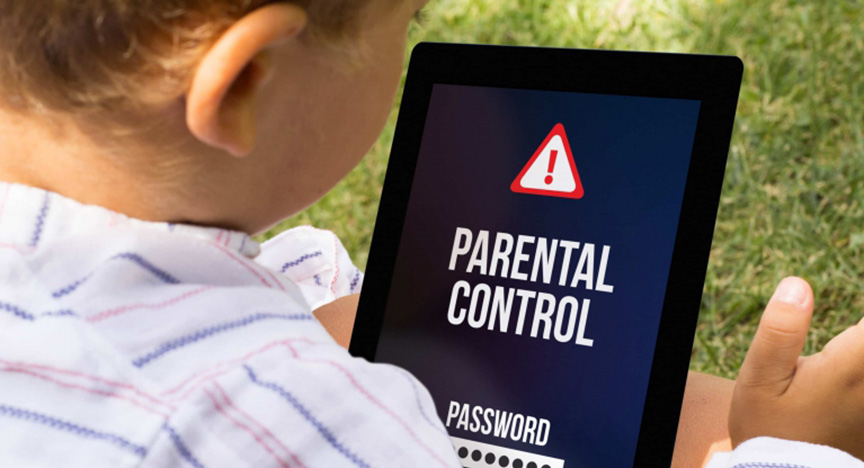
Parental control software acts as a digital safety net. It doesn’t replace parenting, but it supports your efforts by giving you visibility and control. Think of it as a co-pilot for your child’s online journey—helping you steer them away from danger while still letting them explore.
Key Benefits of Using Parental Control Software
- Content Filtering: Blocks access to adult, violent, or otherwise inappropriate websites and apps.
- Screen Time Management: Sets daily or weekly limits on device usage, helping prevent digital addiction.
- Location Tracking: Lets you see where your child is (great for older kids with smartphones).
- App Monitoring: Shows which apps your child uses most and how long they spend on them.
- Real-Time Alerts: Notifies you if your child tries to access blocked content or visits risky sites.
- Social Media Oversight: Monitors activity on platforms like Instagram, TikTok, and Snapchat (where available).
How Parental Control Software Works
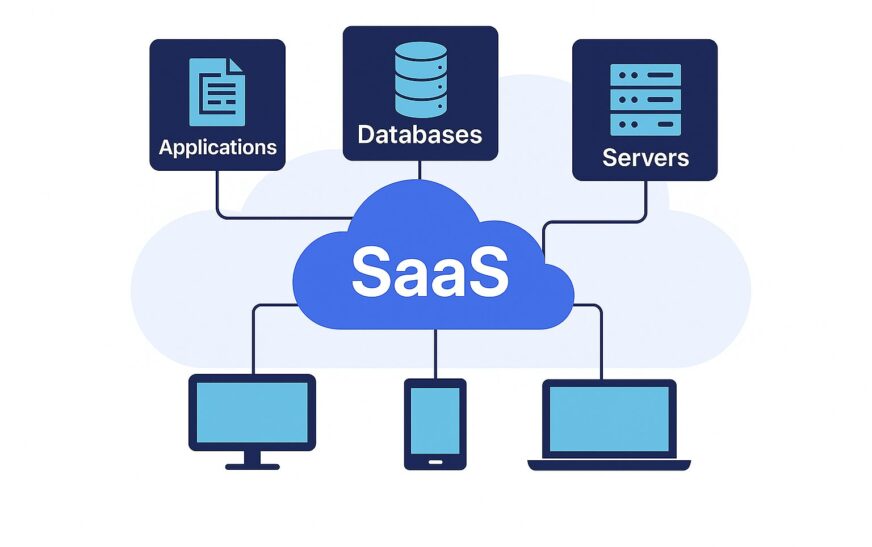
Most parental control software operates through a combination of device-level installation and cloud-based management. You install an app or extension on your child’s phone, tablet, or computer, then manage settings from your own device via a parent dashboard.
The software uses filters, algorithms, and real-time scanning to detect and block harmful content. Some tools even use AI to recognize patterns—like sudden changes in app usage or frequent late-night browsing—that might signal risky behavior.
Many solutions support cross-platform protection, meaning you can monitor activity on iOS, Android, Windows, and macOS from a single account. This is especially useful if your family uses multiple devices.
Types of Parental Control Software
Not all parental control tools are created equal. Here are the main types you’ll encounter:
- Built-in OS Controls: Both Apple (Screen Time) and Google (Family Link) offer free parental controls. These are great for basics but lack advanced features.
- Standalone Apps: Third-party tools like Qustodio, Bark, and Net Nanny offer deeper monitoring, better reporting, and more customization.
- Router-Based Filters: Some routers come with built-in parental controls that filter internet traffic for all devices on your home network.
- Browser Extensions: Lightweight tools that block harmful websites only when your child uses specific browsers.
For most families, a standalone app offers the best balance of power, ease of use, and reliability.
Top Features to Look for in Parental Control Software
When shopping for parental control software, don’t just go for the flashiest name. Focus on features that match your family’s needs. Here’s what to prioritize:
1. Comprehensive Content Filtering
The core function of any parental control tool is blocking inappropriate content. Look for software that filters not just websites, but also search results, YouTube videos, and app stores. Advanced tools use real-time analysis to catch newly uploaded harmful content.
2. Flexible Screen Time Scheduling
Kids need downtime—especially before bed. The best software lets you set custom schedules: no screens during homework hours, limited use on school nights, and longer windows on weekends. Some even allow “pause” buttons for family time.
3. Real-Time Monitoring & Alerts
You don’t need to check the dashboard every hour. Instead, choose a tool that sends instant alerts when something suspicious happens—like a sudden spike in messaging apps or attempts to visit blocked sites.
4. Social Media & Messaging Oversight
Cyberbullying and online predators often lurk in DMs and comment sections. Some parental control apps scan messages for red flags like threats, self-harm language, or sexual content—even if they’re hidden in emojis or slang.
5. Location Tracking & Geofencing
For tweens and teens with their own phones, location features are a game-changer. Geofencing sends you an alert if your child leaves a safe zone—like school or home—without permission.
6. Cross-Device Compatibility
Your child probably uses more than one device. Make sure the software works on all of them: iPhone, Android, iPad, laptop, and even gaming consoles like PlayStation or Xbox.
7. Easy Setup & User-Friendly Dashboard
You’re busy. The last thing you need is a complicated setup process. Look for tools with intuitive interfaces, clear instructions, and responsive customer support.
Best Parental Control Software in 2024
With so many options, it’s hard to know where to start. Here are five top-rated parental control software solutions that balance power, privacy, and ease of use:
1. Qustodio
Qustodio is a favorite among parents for its robust feature set and reliable performance. It offers web filtering, screen time controls, app blocking, and detailed activity reports. The dashboard is clean and easy to navigate, and it supports all major platforms.
One standout feature is its panic button—kids can press it to alert parents in an emergency. Pricing starts at $54.95/year for up to 3 devices.
2. Bark
Bark focuses on mental health and safety. It monitors texts, emails, and 30+ social platforms for signs of cyberbullying, depression, or self-harm. Instead of blocking content, it sends alerts so you can start a conversation.
Bark doesn’t track location or screen time, making it ideal for older kids who value privacy. Plans start at $14/month.
3. Net Nanny
Net Nanny is one of the oldest names in parental controls, and it’s still going strong. Its Dynamic Filtering AI adapts to new threats in real time, and it offers strong YouTube and social media monitoring.
It also includes a “Family Feed” where you can see your child’s online activity at a glance. Pricing starts at $59.99/year.
4. Kaspersky Safe Kids
Kaspersky combines antivirus protection with parental controls, making it a great all-in-one solution. It offers web filtering, app usage tracking, and location monitoring.
The free version is surprisingly powerful, but the premium plan ($14.99/year) adds social media monitoring and detailed reports.
5. Google Family Link & Apple Screen Time
If you’re on a budget, don’t overlook built-in tools. Google Family Link (for Android) and Apple Screen Time (for iOS) offer solid basics: app limits, content filters, and location sharing.
They’re free, easy to set up, and perfect for younger kids. Just know they lack the depth of third-party apps.
How to Set Up Parental Control Software (Step-by-Step)
Getting started doesn’t have to be overwhelming. Follow these steps to install and configure your chosen parental control software:
- Choose the Right Tool: Match the software to your child’s age, devices, and online habits.
- Create a Parent Account: Sign up using your email and set up a secure password.
- Install on Your Child’s Device: Download the app and follow the setup wizard. You may need to grant permissions for monitoring.
- Customize Settings: Set screen time limits, block inappropriate categories, and enable alerts.
- Test the System: Try accessing a blocked site or exceeding screen time to ensure it works.
- Talk to Your Child: Explain why you’re using the software—not to spy, but to protect.
Remember: transparency builds trust. Let your child know you’re not trying to invade their privacy, but to keep them safe.
Privacy vs. Protection: Finding the Right Balance
It’s natural to worry about overstepping. After all, kids need privacy to grow and develop independence. The key is balance.
Use parental control software as a tool for guidance, not surveillance. For younger children, full monitoring makes sense. But as kids grow, gradually loosen restrictions and focus on open conversations about online safety.
Experts recommend involving your child in the process. Let them help choose settings or review reports together. This teaches responsibility and digital citizenship.
Also, avoid monitoring private messages unless there’s a clear safety concern. Over-monitoring can damage trust and push kids to hide their online activity.
Common Mistakes Parents Make with Parental Control Software
Even the best tools can backfire if used incorrectly. Here are pitfalls to avoid:
- Installing Without Talking: Surprising your child with monitoring can feel like a betrayal. Always have a conversation first.
- Ignoring False Positives: Some tools flag harmless content. Regularly review alerts to avoid unnecessary conflicts.
- Forgetting to Update Settings: As your child grows, their needs change. Update filters and time limits accordingly.
- Relying Solely on Software: No app can replace parenting. Combine tech tools with regular check-ins and digital literacy lessons.
- Using It as Punishment: Parental controls should protect, not punish. Avoid taking away access as a disciplinary measure.
Key Takeaways
- Parental control software is essential for keeping kids safe online in 2024.
- Look for features like content filtering, screen time management, and real-time alerts.
- Top tools include Qustodio, Bark, Net Nanny, and built-in OS controls.
- Always involve your child in the process to build trust and teach responsibility.
- Balance protection with privacy—especially as your child grows older.
FAQ: Your Questions About Parental Control Software, Answered
Is parental control software legal?
Yes, as long as you’re monitoring your own child’s devices. It’s your responsibility to keep them safe. However, never use these tools to spy on someone else’s child or device without consent.
Can kids bypass parental control software?
Some tech-savvy kids may try. They might use VPNs, switch browsers, or factory reset devices. Choose reputable software with strong security, and keep communication open to discourage sneaky behavior.
Do I need parental controls for teens?
Absolutely. Teens face unique risks like cyberbullying, sexting, and online predators. While you may reduce monitoring, tools like Bark can alert you to red flags without invading privacy.
Final Thoughts: Empower, Don’t Control
Parental control software isn’t about restricting freedom—it’s about empowering your child to navigate the digital world safely. The goal isn’t to lock them out, but to guide them in.
Use these tools wisely, talk openly about online risks, and adjust your approach as your child matures. With the right balance of tech and trust, you can help your kids become confident, responsible digital citizens.
Start today. Your child’s online safety is worth it.