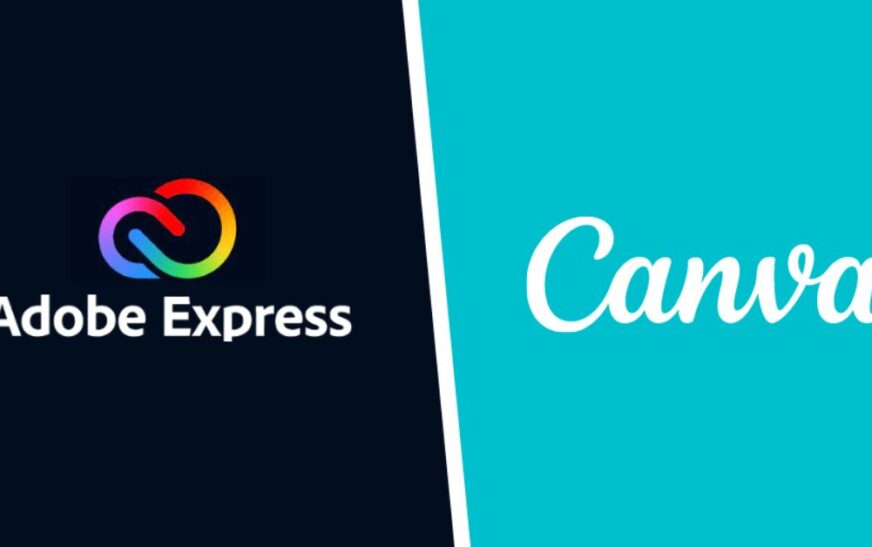
When you need a quick design—whether it’s a social media post, flyer, or presentation slide—time is everything. That’s why choosing the right tool matters. Canva vs. Adobe Express is one of the most debated comparisons among creators, marketers, and small business owners who want speed without sacrificing quality. Both platforms promise fast, professional results, but which one truly delivers when you’re on a deadline?
In this head-to-head showdown, we’ll break down every feature that impacts speed, ease of use, and output quality. Whether you’re designing your first Instagram story or updating a company newsletter, this guide will help you pick the best tool for fast, effective visual content.
Why Speed Matters in Design
In today’s fast-paced digital world, attention spans are short—and so are deadlines. A quick design tool isn’t just convenient; it’s essential. Whether you’re posting daily on social media or responding to a last-minute client request, you need software that lets you create, edit, and export in minutes—not hours.
Both Canva and Adobe Express are built with speed in mind, but they take different approaches. Canva leans heavily into simplicity and templates, while Adobe Express brings the power of the Adobe ecosystem into a streamlined interface. The real question isn’t just which tool is faster, but which one fits your workflow, skill level, and creative needs.
User Interface: First Impressions Count
Canva: Drag, Drop, Done
Canva’s interface is famously beginner-friendly. From the moment you log in, you’re greeted with a clean dashboard filled with pre-sized templates for everything from TikTok videos to business cards. The drag-and-drop editor feels intuitive—even if you’ve never designed anything before.
Everything is where you’d expect it: text tools on the left, uploads at the top, and a vast library of elements just a click away. The learning curve is nearly flat, which means you can start designing immediately—no tutorials required.
Adobe Express: Sleek, but Slightly Steeper
Adobe Express offers a modern, polished interface that feels familiar to anyone who’s used other Adobe products. It’s clean and well-organized, but it assumes a bit more design literacy. For example, layer management and alignment tools are more advanced, which is great for precision—but can slow down absolute beginners.
That said, Adobe Express has improved its onboarding experience with guided tours and smart suggestions. If you’re already comfortable with design concepts, you’ll appreciate the extra control. But if you just need to slap together a quick promo image, Canva’s simplicity gives it an edge.
Template Library: Quantity vs. Quality
Canva: Millions of Options, But Are They All Good?
Canva boasts over 100 million templates—yes, million. That’s a huge advantage when you need inspiration fast. Whether you’re designing a birthday invitation or a LinkedIn banner, there’s likely a template that’s 90% done.
However, quantity doesn’t always mean quality. Some templates feel generic or overused, especially in popular categories like Instagram posts. Still, Canva’s search and filtering tools are excellent. You can sort by color, style, or even trending designs, helping you find something fresh in seconds.
Adobe Express: Curated, Professional, and Brand-Ready
Adobe Express offers fewer templates—around 50,000—but they’re carefully curated for professionalism and visual appeal. Many are designed by Adobe’s in-house creatives, so they often look more polished and less “template-y” than Canva’s offerings.
This focus on quality makes Adobe Express a strong choice for businesses that need consistent branding. Plus, Adobe Express integrates seamlessly with Adobe Fonts and Adobe Stock, giving you access to high-end assets that elevate your designs instantly.
Customization and Flexibility
Canva: Easy Tweaks, Limited Depth
Canva shines when it comes to quick customization. Change colors with a single click, swap fonts from a dropdown, or resize elements with smart guides. The “Magic Resize” feature is a game-changer—turn a Facebook post into a Pinterest pin in seconds.
But there are limits. Advanced editing like masking, clipping paths, or detailed layer effects aren’t available. If you need to remove a complex background or blend images seamlessly, Canva falls short. It’s perfect for fast, flat designs, but not for intricate projects.
Adobe Express: More Power Under the Hood
Adobe Express supports more advanced features, including background removal (powered by Adobe Sensei AI), photo effects, and layer blending modes. You can also import and edit PSD files—something Canva can’t do.
This makes Adobe Express better suited for users who want speed and flexibility. Want to tweak a photo’s lighting or add a subtle texture overlay? Adobe Express handles it smoothly. It’s not Photoshop-level power, but it’s significantly more capable than Canva for detailed edits.
AI and Automation: Who’s Smarter?
Canva: AI for Everyone
Canva has embraced AI with tools like Magic Design, which generates full layouts from a text prompt. Type “summer sale flyer,” and it creates multiple options in seconds. There’s also Magic Edit for swapping objects in photos and Text to Image for generating graphics from descriptions.
These features are impressively user-friendly. Even non-designers can produce eye-catching visuals with minimal effort. The AI isn’t perfect—sometimes the results feel a bit generic—but for rapid prototyping, it’s incredibly useful.
Adobe Express: Smarter, More Refined AI
Adobe Express uses Adobe Firefly, the company’s generative AI model trained on licensed content. This means AI-generated images are safer for commercial use—a big plus for businesses.
Features like Generative Fill and Text Effects are more nuanced than Canva’s equivalents. You can add realistic textures, adjust lighting, or extend backgrounds with impressive accuracy. The AI feels more like a creative assistant than a blunt instrument.
For users who need both speed and originality, Adobe Express’s AI tools offer a higher ceiling—especially if you’re working on branded content.
Collaboration and Team Features
Canva: Built for Teams
Canva excels in collaboration. Real-time editing, commenting, and version history are standard—even in the free plan. You can assign roles (editor, viewer, admin), share brand kits, and manage team folders with ease.
The Canva Teams feature is ideal for small businesses and marketing departments. Everyone stays on-brand, and projects move quickly without endless email chains.
Adobe Express: Solid, But Not as Seamless
Adobe Express supports team collaboration, but it’s not as polished. Sharing designs is straightforward, and you can leave comments, but real-time co-editing isn’t as smooth as Canva’s. Version control is also more limited.
That said, if your team already uses Adobe Creative Cloud, Express integrates well with other apps like Photoshop and Illustrator. This ecosystem advantage can streamline workflows for design-heavy teams.
Pricing: What You Get for Your Money
Canva: Generous Free Tier, Affordable Pro
Canva’s free plan is one of the most generous in the industry. You get access to millions of templates, basic photo editing, and collaboration tools. For most casual users, it’s more than enough.
Canva Pro ($12.99/month) unlocks premium templates, background remover, brand kit, and 100GB of storage. It’s a great value for freelancers and small teams.
Adobe Express: Free, But Limited
Adobe Express has a free version, but it’s more restricted. You can’t use premium templates, Adobe Stock images, or advanced AI features without a subscription.
The paid plan ($9.99/month) includes everything in the free version plus full access to Adobe Fonts, Stock, and Firefly AI. It’s slightly cheaper than Canva Pro, but the free tier is less useful for serious creators.
Performance and Reliability
Canva: Fast, But Can Lag with Large Files
Canva runs smoothly in the browser and has a solid mobile app. However, complex designs with many elements can slow it down. Exporting high-res files sometimes takes longer than expected.
Adobe Express: Optimized for Speed
Adobe Express is built on modern web tech and feels snappier overall. It handles large files better and exports faster, especially when using cloud-based assets. The mobile experience is also more responsive.
Which is Better for Quick Designs?
So, Canva vs. Adobe Express: which is better for quick designs? The answer depends on your priorities.
If you need to create something fast, simple, and shareable—like a social media post, flyer, or presentation—Canva wins. Its massive template library, intuitive interface, and team features make it the go-to for speed and ease.
But if you want speed with more creative control—especially for branded content, photo editing, or AI-enhanced designs—Adobe Express is the better choice. It offers deeper customization, smarter AI, and tighter integration with professional tools.
Key Takeaways
- Canva is ideal for beginners and teams who need fast, template-driven designs with minimal learning curve.
- Adobe Express suits users who want quick results with more advanced features, especially if they’re already in the Adobe ecosystem.
- Canva’s free plan is more generous; Adobe Express’s paid plan offers better value for professionals.
- For AI-powered design, Adobe Express provides more refined, commercially safe results.
- Collaboration is smoother in Canva, while Adobe Express offers better photo and layer editing.
FAQ
Can I use Canva and Adobe Express for free?
Yes, both offer free plans. Canva’s free tier includes more features and templates, while Adobe Express limits access to premium assets and AI tools without a subscription.
Which tool is better for social media graphics?
Canva is generally better for quick social media posts due to its vast template library and Magic Resize feature. Adobe Express is stronger if you need custom photo edits or branded consistency.
Can I remove backgrounds in both tools?
Yes, both Canva and Adobe Express offer one-click background removal. Adobe Express’s tool is more accurate, especially for complex edges like hair or fur.
Final Verdict
When it comes to quick designs, there’s no outright winner—only the right tool for your needs. Canva is the champion of speed and simplicity, perfect for everyday creators who want results now. Adobe Express brings more power and polish, ideal for those who want fast and professional.
Try both free versions. Create the same design in each. See which one feels faster, easier, and more aligned with your goals. Because in the end, the best design tool is the one that helps you create—quickly, confidently, and without frustration.