Ever felt like you’re only scratching the surface with Google search? You type in a few keywords, skim the results, and hope for the best. But what if you could drastically improve your search precision—uncovering hidden pages, filtering out noise, and finding exactly what you need in seconds? That’s where advanced Google search operators come in. These little-known commands act like secret shortcuts, giving you supercharged control over your queries. Whether you’re a marketer, researcher, journalist, or just a curious internet explorer, mastering these tools can transform how you use Google—making you faster, smarter, and far more efficient.
Most people stick to basic searches, unaware that Google supports a full arsenal of powerful operators. From pinpointing exact phrases to hunting down outdated content or finding sites that link to a competitor, these tools are the unsung heroes of digital discovery. In this guide, we’ll dive deep into the most underused yet incredibly effective advanced Google search operators—ones even seasoned users often overlook. No fluff, no jargon overload—just actionable, real-world examples that work.
What Are Google Search Operators (And Why Should You Care)?
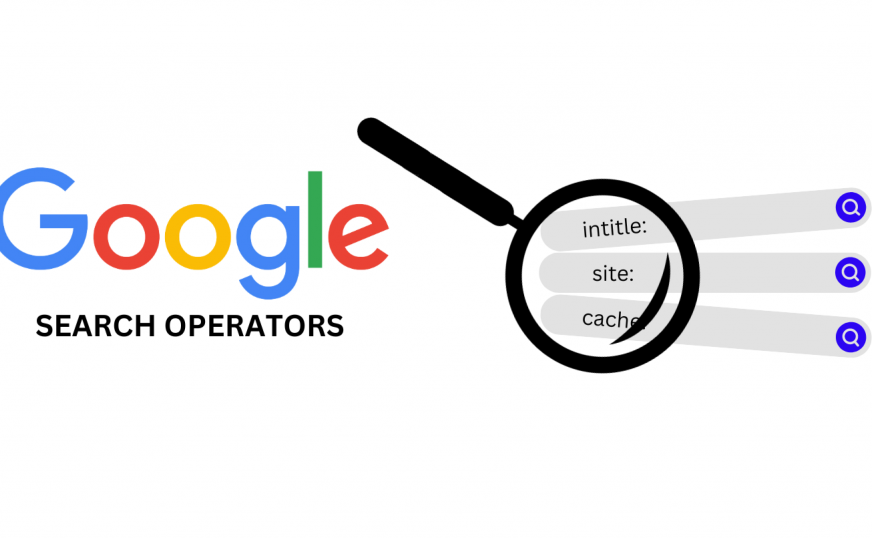
Google search operators are special characters and commands you can add directly into the search bar to refine your results. Think of them as filters or modifiers that tell Google exactly what kind of information you’re looking for. While basic searches rely on algorithms and relevance scoring, operators let you bypass the guesswork and target specific data types, domains, file formats, or even time ranges.
For example, instead of searching “best coffee shops NYC” and sifting through ads and generic lists, you could use an operator to find only blog posts from the last six months or exclude certain websites. The difference? You go from overwhelmed to informed in half the time. These aren’t just for tech geeks—they’re for anyone who values efficiency, accuracy, and depth in their online research.
The Hidden Power Behind Simple Symbols
Many advanced operators use symbols you already know—like quotes, minus signs, or colons—but in specific combinations. Here’s a quick breakdown of the most impactful ones:
- Quotation marks (” “): Search for an exact phrase. Try
"climate change impacts agriculture"to avoid fragmented results. - Minus sign (-): Exclude a term. Use
vegan recipes -soyto skip soy-based dishes. - Asterisk (*): Acts as a wildcard. Search
how to * a websiteto find variations like “build,” “design,” or “launch.” - Site:: Limit results to a specific domain.
site:nytimes.com AI ethicsshows only NYT articles on AI ethics. - Filetype:: Find specific file formats.
filetype:pdf "marketing strategy"pulls up PDF guides.
These may seem basic, but when combined with lesser-known operators, they unlock entirely new levels of search intelligence.
10 Advanced Google Search Operators You’re Probably Not Using
Now let’s get into the real gold—the advanced operators that most users never touch, but should. These aren’t taught in school, rarely mentioned in blogs, and yet they’re freely available to anyone who knows how to use them.
1. intitle: – Find Pages with Specific Words in the Title
The intitle: operator restricts results to pages that contain your keyword in the HTML title tag—a critical SEO element. This is gold for competitive analysis or content research.
Example: intitle:"content marketing tips" will show only pages where “content marketing tips” appears in the title. Combine it with other operators: intitle:"SEO" site:blog.hubspot.com finds HubSpot blog posts specifically titled with “SEO.”
2. allintitle: – Multiple Keywords in the Title
Need more precision? Use allintitle: to require that all specified words appear in the title.
Example: allintitle:Google search operators guide ensures every result has all four words in the title. This is perfect for finding comprehensive tutorials or definitive guides.
3. inurl: – Search Within the URL
Use inurl: to find pages where your keyword appears in the web address. This is useful for locating admin pages, login portals, or category-specific content.
Example: inurl:blog "digital marketing" shows blog pages with “digital marketing” in the URL. Security researchers often use this to find exposed directories: inurl:admin login.
4. allinurl: – Multiple Keywords in the URL
Like allintitle:, but for URLs. allinurl:seo tools free returns only pages where all three words appear in the URL—great for finding niche tool directories.
5. intext: and allintext: – Search Within Page Content
While Google naturally scans page content, intext: lets you force it to prioritize certain words. Use intext:"privacy policy" to find pages discussing privacy policies.
allintext: requires all specified words to appear somewhere in the body text. Example: allintext:how to rank higher Google targets detailed guides with those exact phrases.
6. related: – Discover Competitor Alternatives
This operator finds websites similar to a given domain. It’s a goldmine for competitive intelligence.
Example: related:moz.com reveals sites like Ahrefs, SEMrush, and other SEO platforms. Use it to uncover new tools, blogs, or services in your niche.
7. cache: – View Google’s Saved Version of a Page
Even if a page is down or deleted, Google often keeps a cached copy. Use cache:example.com to see the last snapshot Google indexed.
This is invaluable for recovering lost content, checking historical versions, or analyzing how a page looked before a redesign.
8. define: – Get Instant Definitions
Need a quick definition without clicking through? Use define:serendipity to get Google’s concise explanation at the top of the results.
Great for students, writers, or anyone verifying terminology on the fly.
9. link: – Find Pages Linking to a Site (Limited Use)
Once powerful, link:example.com used to show all pages linking to a domain. Today, it’s less reliable due to Google’s algorithm changes, but it still occasionally reveals backlinks—especially from high-authority sites.
Try it with major domains: link:wikipedia.org might show surprising referrers.
10. daterange: – Search Within a Specific Time Frame
This one’s tricky but potent. Use daterange: followed by Julian dates (yes, really) to find content published between two dates.
Example: climate change daterange:2459000-2459200 searches between May 2020 and November 2020. To find Julian dates, use an online converter. While cumbersome, this is the only native way to time-filter without using Google’s “Tools” menu.
Combining Operators for Maximum Impact
The real magic happens when you chain multiple operators together. Google allows complex queries, so you can build highly targeted searches.
Example:
site:medium.com intitle:"AI" "2024" -chatbot
This finds Medium articles from 2024 with “AI” in the title, but excludes any mentioning “chatbot.” Perfect for focused research.
Another power combo:
filetype:pdf "marketing plan" intext:"budget" site:.edu
This pulls up academic PDFs about marketing plans that include budget details—ideal for students or professionals seeking credible templates.
Pro tip: Always test your queries. Google’s syntax is forgiving, but order and spacing matter. Use parentheses for grouping if needed, though they’re not always required.
Real-World Use Cases: Who Benefits Most?
These operators aren’t just for fun—they solve real problems across industries.
For Marketers & SEOs
- Find guest posting opportunities:
intitle:"write for us" "marketing" - Analyze competitor content:
site:competitor.com "blog" "2023" - Discover broken links:
site:yourdomain.com 404(though use with caution)
For Journalists & Researchers
- Track news coverage:
"data breach" site:bbc.com after:2023-01-01 - Find primary sources:
filetype:pdf "government report" "climate" - Verify quotes:
"exact quote here" site:.gov
For Developers & IT Pros
- Locate exposed config files:
filetype:env "DB_PASSWORD" - Find API documentation:
intitle:"API documentation" site:github.io - Discover open directories:
intitle:"index of" "backup"
For Students & Academics
- Access scholarly papers:
filetype:pdf "machine learning" site:.edu - Find thesis examples:
intitle:"thesis" "psychology" filetype:pdf - Compare definitions:
define:algorithm vs define:heuristic
Common Mistakes to Avoid
Even experienced users slip up with advanced operators. Here’s what to watch for:
- Overcomplicating queries: Start simple. Add one operator at a time.
- Ignoring case sensitivity: Most operators are lowercase.
Site:won’t work—usesite:. - Forgetting spaces:
site:nytimes.comAIfails. Always leave a space:site:nytimes.com AI. - Assuming all operators work forever: Google deprecates some over time (like
link:). Stay updated.
Also, remember: operators work best on desktop. Mobile Google apps may not process complex queries accurately.
Key Takeaways
- Advanced Google search operators give you precise control over search results, saving time and improving accuracy.
- Operators like
intitle:,inurl:,site:, andfiletype:are essential for targeted research. - Combining operators unlocks powerful search strategies for marketers, researchers, developers, and students.
- Always test queries, avoid syntax errors, and stay aware of Google’s evolving support for certain commands.
- These tools are free, built-in, and underused—master them to gain a serious edge in information retrieval.
FAQ: Your Questions Answered
Q: Do Google search operators work on mobile?
A: Mostly yes—but with limitations. The mobile Google app supports basic operators like quotes and minus signs, but complex queries (especially with daterange: or multiple combos) may not process correctly. For best results, use the desktop version of Google in your mobile browser.
Q: Are there any risks to using advanced operators?
A: Generally no—they’re safe and read-only. However, searching for sensitive terms (like inurl:admin) might trigger security alerts on some networks. Avoid using them to probe systems without permission, as that could violate terms of service or laws.
Q: Will Google ever remove these operators?
A: Some have been deprecated (like the full functionality of link:), but core operators remain stable. Google rarely announces changes, so it’s wise to bookmark reliable guides and test regularly. The best operators are likely here to stay—they’re too useful for power users.
Mastering advanced Google search operators isn’t about becoming a search wizard overnight. It’s about building a toolkit that grows with your needs. Start with one or two operators, practice daily, and soon you’ll wonder how you ever searched without them. The internet is vast—but with the right commands, you can navigate it like a pro.