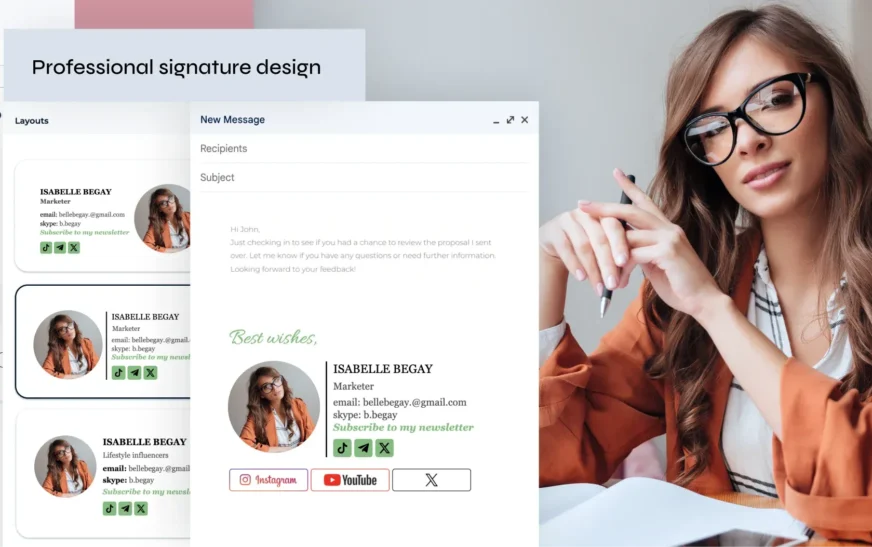
Want a professional email signature that looks sharp—without waiting for IT to approve it? You’re in the right place. Creating a custom email signature doesn’t require technical skills, admin access, or a help desk ticket. Whether you’re using Gmail, Outlook, Apple Mail, or another service, you can design and deploy a sleek, branded signature in minutes—all by yourself.
This guide walks you through every step: from choosing the right tools to formatting your details, adding logos or social icons, and ensuring your signature works across devices. No coding. No confusion. Just clear, actionable steps so you can upgrade your email game today.
Why a Custom Email Signature Matters
Your email signature is more than just your name and title. It’s a mini business card, a branding tool, and a subtle call to action—all tucked at the bottom of every message you send. A well-crafted custom email signature builds credibility, reinforces your professional image, and can even drive traffic to your website or LinkedIn profile.
On the flip side, a plain “Sent from my iPhone” or a cluttered, outdated signature sends the wrong message. It suggests carelessness or lack of attention to detail—traits no professional wants associated with their name.
With remote work and digital communication now the norm, your email signature is often the first (and sometimes only) impression clients, colleagues, or recruiters get of you. That’s why taking five minutes to create a custom email signature is one of the smartest, easiest upgrades you can make to your personal brand.
What Makes a Great Email Signature?
A great email signature is clean, consistent, and functional. It includes only essential information, avoids distracting fonts or colors, and displays correctly on both desktop and mobile devices. Here’s what to aim for:
- Clarity: Your name, job title, and company should be instantly recognizable.
- Branding: Use your company’s colors, logo, or font (if appropriate).
- Contact details: Include a phone number, website, and relevant social links.
- Call to action: Add a link to your portfolio, calendar booking page, or latest blog post.
- Mobile-friendly: Avoid large images or complex tables that break on small screens.
Step-by-Step: How to Create a Custom Email Signature (No IT Required)
You don’t need IT support to build a professional email signature. Most email platforms allow users to create and edit signatures directly in their settings. Below, we’ll cover the most popular email clients with simple, no-fuss instructions.
1. Gmail: Create a Custom Signature in 5 Minutes
Gmail makes it easy to set up a custom email signature without any technical know-how. Here’s how:
- Open Gmail and click the gear icon (⚙️) in the top-right corner.
- Select “See all settings”.
- Scroll down to the “Signature” section.
- Click “Create new” and give your signature a name (e.g., “Work Signature”).
- In the text box, type your name, title, company, and contact info.
- Use the formatting toolbar to add bold, italics, links, or images (like your logo).
- To add a logo or image: Click the image icon, upload from your computer, or paste a URL.
- Set your signature to appear on new emails and replies/forwards.
- Scroll to the bottom and click “Save Changes”.
Pro tip: Keep your signature under 5 lines. Long signatures look cluttered and may get cut off on mobile.
2. Outlook (Desktop & Web): Simple Signature Setup
Whether you’re using Outlook on Windows, Mac, or the web version, creating a custom email signature is straightforward.
For Outlook on the Web (Outlook.com or Office 365):
- Go to Settings (gear icon) > View all Outlook settings.
- Navigate to Mail > Compose and reply.
- Under Email signature, click into the text box.
- Type your details and use the formatting options to style your text.
- Insert images or hyperlinks using the toolbar.
- Choose whether to automatically add the signature to new messages and replies.
- Click Save.
For Outlook Desktop (Windows or Mac):
- Open Outlook and go to File > Options (Windows) or Preferences (Mac).
- Select Mail > Signatures.
- Click New, name your signature, and design it in the editor.
- Assign the signature to specific email accounts if you have multiple.
- Set default signatures for new messages and replies.
- Click OK to save.
3. Apple Mail: Elegant Signatures for Mac Users
Apple Mail users can create stylish, minimalist signatures that blend seamlessly with macOS design. Here’s how:
- Open Mail and go to Mail > Settings (or Preferences).
- Click the Signatures tab.
- Select your email account from the left panel.
- Click the + button to create a new signature.
- Name it (e.g., “Work” or “Personal”).
- Type your information in the text box on the right.
- Use the formatting bar to adjust font, size, color, or alignment.
- To add a logo: Drag and drop an image file into the signature box.
- Close the window—your signature saves automatically.
Note: Apple Mail signatures sync across devices if you’re using iCloud. Just make sure “Sync Signatures” is enabled in iCloud settings.
Design Tips for a Standout Custom Email Signature
A great signature isn’t just about content—it’s about presentation. Here are expert design tips to make your custom email signature look polished and professional.
Keep It Clean and Minimal
Less is more. Avoid cramming in every social media link, award, or quote. Stick to the essentials:
- Full name
- Job title
- Company name
- Phone number (optional)
- Website or LinkedIn
- Company logo (small, 100–150px wide)
Use a simple font like Arial, Helvetica, or Calibri. Avoid decorative fonts that may not render correctly across devices.
Use a Horizontal Layout (Not Vertical)
Stacking your info vertically (one line per detail) may look neat on desktop but often breaks on mobile. Instead, use a horizontal layout with separators like vertical bars (|) or bullets (•):
Jane Doe | Marketing Director | Acme Inc. | jane@acme.com | LinkedIn
This format stays readable on small screens and reduces the chance of line breaks.
Add a Subtle Call to Action
Turn your signature into a mini marketing tool. Include a link to:
- Your Calendly or booking page
- A recent blog post or portfolio
- A free resource or lead magnet
- Your company’s latest product launch
Example: “Book a 15-minute consult” or “Download our free guide”—short, clear, and actionable.
Optimize for Mobile
Over 60% of emails are opened on mobile devices. Test your signature on your phone to ensure:
- Text is legible (minimum 10–12pt font)
- Images aren’t too large (under 150px wide)
- Links are tappable (not too close together)
- No horizontal scrolling is needed
If your signature looks cramped or broken on mobile, simplify it. Remove the logo or reduce the number of links.
Free Tools to Build a Custom Email Signature (No Design Skills Needed)
Don’t want to hand-code your signature? No problem. These free, user-friendly tools let you create a custom email signature in minutes—no design experience required.
1. HubSpot Email Signature Generator
One of the most popular free tools, HubSpot’s generator lets you input your details and instantly generates a clean, professional signature. You can add a logo, social icons, and a call-to-action button. It exports HTML code you can paste into Gmail, Outlook, or other platforms.
Best for: Professionals who want a branded, modern look with minimal effort.
2. MySignature
MySignature offers templates for Gmail, Outlook, and Apple Mail. Choose a design, customize colors and fonts, and preview how it looks on desktop and mobile. It also supports dark mode signatures—perfect for modern inboxes.
Best for: Users who want design flexibility without complexity.
3. Signature Hound
This tool focuses on simplicity and compatibility. It generates signatures that work across all major email clients and devices. You can add disclaimers, legal text, or promotional banners—ideal for regulated industries.
Best for: Corporate users needing compliance-friendly signatures.
4. Canva (Email Signature Templates)
Canva now offers email signature templates in its design suite. Choose a layout, drag in your photo or logo, and customize text. Once done, download as an image or copy the HTML (Pro feature).
Best for: Creative professionals who want a visually unique signature.
Avoid These Common Email Signature Mistakes
Even small errors can make your signature look unprofessional. Watch out for these common pitfalls:
-
- Using a photo of yourself: Unless you’re a consultant or freelancer, personal photos can seem unprofessional in corporate settings.
- Overloading with social icons: Too many icons look cluttered. Stick to 1–2 relevant platforms (e.g., LinkedIn and Twitter).
- Broken links: Always test your links. A dead link to your portfolio or calendar looks careless.
Large file sizes: High-res logos slow down email loading. Compress images to under 50KB.
- Inconsistent branding: Use the same colors, fonts, and tone as your company’s website or email campaigns.
Key Takeaways
- You don’t need IT help to create a custom email signature—most email platforms have built-in tools.
- A professional signature boosts credibility, reinforces branding, and can drive engagement.
- Keep it simple: name, title, company, contact info, and one call to action.
- Use horizontal layouts and test on mobile to ensure readability.
- Free tools like HubSpot, MySignature, and Canva make design easy—no coding required.
- Avoid photos, broken links, and oversized images to maintain a polished look.
FAQ: Creating a Custom Email Signature (No IT Help Needed)
Can I create a custom email signature without admin permissions?
Yes! Most email platforms (Gmail, Outlook, Apple Mail) allow individual users to create and manage their own signatures in personal settings. You don’t need admin rights or IT involvement unless your company enforces centralized signature policies.
Will my custom email signature work on mobile?
It depends on the design. Simple text-based signatures with small images and horizontal layouts usually display well on mobile. Avoid large tables, complex HTML, or high-resolution images. Always preview your signature on your phone before finalizing.
How do I add a logo to my email signature?
Upload your logo directly in the signature editor (Gmail, Outlook, Apple Mail) or use a free generator like HubSpot. Make sure the image is small (100–150px wide) and hosted online (or embedded) so it displays correctly for recipients.
Final Thoughts: Your Signature, Your Brand
Your email signature is a small but powerful part of your professional identity. It’s seen by clients, coworkers, and prospects every time you hit “send.” By taking the time to create a custom email signature—no IT help needed—you show attention to detail, pride in your work, and a commitment to professionalism.
Don’t let a default “Sent from my iPhone” represent you. With the tools and tips in this guide, you can build a signature that’s clean, consistent, and compelling—in under 10 minutes.
So go ahead. Open your email settings. Add your logo. Link to your latest project. And send your next email with confidence.