Imagine building a fully functional mobile app in half the time—without writing every line of code from scratch. That’s not science fiction anymore. With the rise of AI tools for app development, developers, startups, and even non-coders are transforming ideas into real applications faster than ever. Whether you’re building a fitness tracker, a food delivery platform, or a productivity app, AI is no longer just a nice-to-have—it’s becoming essential.
This guide cuts through the hype and shows you exactly how to use AI tools for app development, from planning and design to coding, testing, and deployment. You’ll learn which tools to use, when to use them, and how to integrate them seamlessly into your workflow—without sacrificing quality or control.
Why AI Tools Are Changing the App Development Game
App development used to be a slow, expensive process. You’d spend weeks writing code, debugging errors, and testing features manually. Now, AI-powered tools automate repetitive tasks, generate code, suggest improvements, and even predict user behavior. The result? Faster development cycles, lower costs, and higher-quality apps.
AI tools for app development aren’t replacing developers—they’re empowering them. By handling the grunt work, AI frees you to focus on creativity, user experience, and strategic decisions. Whether you’re a solo developer or part of a large team, integrating AI into your process can give you a serious competitive edge.
Key Benefits of Using AI in App Development
- Faster prototyping: Turn wireframes into working prototypes in minutes.
- Automated code generation: Generate boilerplate code for common features like login systems or APIs.
- Smarter debugging: AI identifies bugs and suggests fixes before they reach production.
- Personalized user experiences: Use AI to analyze user data and tailor content in real time.
- Predictive analytics: Forecast user behavior to improve retention and engagement.
Top AI Tools for App Development (And How to Use Them)
Not all AI tools are created equal. Some excel at design, others at coding or testing. Here’s a breakdown of the most effective AI tools for app development—and how to integrate them into your workflow.
1. GitHub Copilot – AI-Powered Code Assistant
GitHub Copilot is like having a coding partner who knows every language and framework. Powered by OpenAI’s Codex model, it suggests entire lines or blocks of code as you type. It works directly in your IDE (like VS Code) and supports languages like JavaScript, Python, Swift, and Kotlin.
Use it to:
- Generate boilerplate code for authentication, database connections, or API calls.
- Speed up repetitive tasks like writing loops or formatting data.
- Learn new frameworks by seeing real-time suggestions.
For example, if you type a comment like “// create a login function with Firebase,” Copilot will generate the full function with error handling and validation.
2. Figma with AI Plugins – Smarter UI/UX Design
Figma is already a favorite among designers, but AI plugins take it to the next level. Tools like Galileo AI and Uizard let you generate entire UI designs from text prompts.
Imagine typing: “Design a dark-mode fitness app with a workout tracker and progress chart.” In seconds, you get a polished, editable mockup.
Use AI in Figma to:
- Convert hand-drawn sketches into digital wireframes.
- Generate color palettes and typography suggestions based on your brand.
- Auto-layout components for responsive design across devices.
This is especially useful for MVPs and rapid prototyping, where speed is critical.
3. ChatGPT & Claude – AI for Planning and Documentation
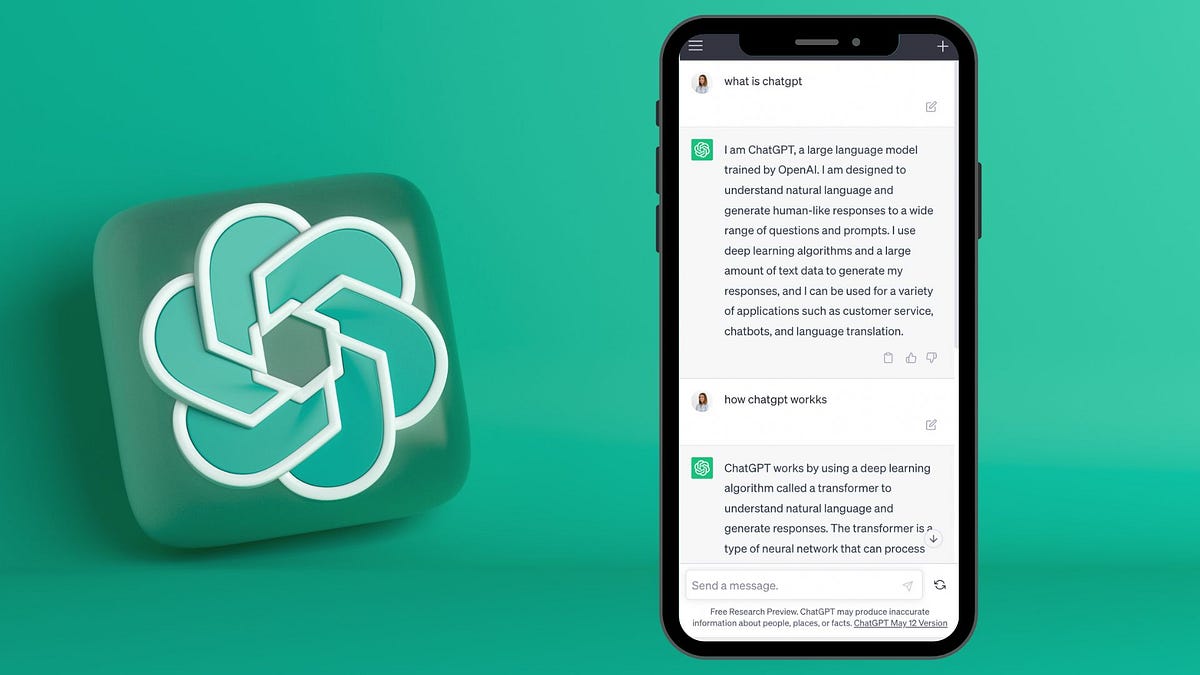
Before you write a single line of code, you need a clear plan. AI chatbots like ChatGPT and Claude can help you brainstorm features, write technical specs, and even draft user stories.
Ask questions like:
- “What features should a budgeting app for students include?”
- “Write a user flow for onboarding in a meditation app.”
- “Generate API documentation for a RESTful service.”
These tools also help with writing clear, concise README files, release notes, and even marketing copy for your app store listing.
4. Firebase + ML Kit – AI Backend Services
Google’s Firebase offers built-in AI services through ML Kit, allowing you to add smart features without building models from scratch. You can integrate:
- Image labeling: Automatically tag photos in a social app.
- Text recognition: Scan receipts or business cards.
- Language translation: Offer real-time translation in chat apps.
- Smart replies: Suggest quick responses in messaging apps.
These features are pre-trained, easy to integrate, and work offline—perfect for mobile apps.
5. Testim & Applitools – AI-Powered Testing
Testing is one of the most time-consuming parts of app development. AI tools like Testim and Applitools automate UI testing by learning how users interact with your app.
Testim uses AI to create self-healing tests. If you change a button’s ID or class, the test adapts automatically—no more broken scripts.
Applitools uses visual AI to detect UI bugs by comparing screenshots. It can spot tiny layout shifts, font changes, or color mismatches that humans might miss.
Use these tools to:
- Run regression tests across multiple devices and screen sizes.
- Reduce manual testing time by up to 70%.
- Ensure consistent UI across updates.
Step-by-Step: Building an App with AI Tools
Let’s walk through a real-world example: building a habit-tracking app using AI tools for app development.
Step 1: Define the Idea with AI
Start by asking ChatGPT: “What features should a habit-tracking app have?” You’ll get a list like:
- Daily habit logging
- Progress charts
- Reminders and notifications
- Streak counters
- Social sharing
Refine the list based on your target audience—say, students or remote workers.
Step 2: Design the UI with AI
Use Uizard to generate a UI from a prompt: “Create a clean, minimal habit tracker app with a calendar view and green accent color.”
Export the design to Figma, then use AI plugins to auto-generate responsive layouts for iOS and Android.
Step 3: Generate Code with GitHub Copilot
Set up a React Native project. As you code, use Copilot to generate:
- State management for habit data
- Firebase integration for user authentication
- Notification scheduling with local push
Copilot even helps write unit tests for your components.
Step 4: Add AI Features with Firebase
Use Firebase ML Kit to add a “motivational quote” feature. Every morning, the app displays a personalized quote based on the user’s habits.
You can also use Firebase Analytics to track which habits users complete most—then suggest improvements.
Step 5: Test with AI Tools
Record a test scenario in Testim: “User logs a habit, checks progress, sets a reminder.” The AI runs this test across iOS and Android simulators.
Use Applitools to verify the UI looks correct on different screen sizes. Any visual bugs are flagged instantly.
Step 6: Deploy and Monitor
Deploy to the App Store and Google Play using automated CI/CD pipelines (like GitHub Actions). Use AI-powered monitoring tools like Sentry or LogRocket to detect crashes and performance issues in real time.
Common Mistakes to Avoid When Using AI Tools
AI is powerful, but it’s not magic. Here are pitfalls to watch out for:
- Over-reliance on AI: Don’t let AI make all the decisions. Always review generated code and designs.
- Ignoring security: AI-generated code can have vulnerabilities. Always audit for security flaws.
- Poor prompt engineering: Vague prompts lead to poor results. Be specific: “Generate a Swift function to validate email format” works better than “Write email code.”
- Skipping testing: AI can introduce bugs. Always test thoroughly, even if the code looks correct.
Key Takeaways
- AI tools for app development speed up every stage—from planning to deployment.
- Use GitHub Copilot for code generation, Figma with AI for design, and Firebase for smart features.
- AI testing tools reduce manual effort and improve app quality.
- Always review AI output and maintain control over your project.
- Start small: integrate one AI tool at a time to see real impact.
FAQ: AI Tools for App Development
Can AI really build an entire app by itself?
Not yet. While AI can generate code, design UI, and suggest features, it still needs human guidance. Think of AI as a highly skilled assistant—not a replacement. You still need to define goals, review output, and make strategic decisions.
Are AI tools expensive?
Many AI tools offer free tiers or affordable plans. GitHub Copilot costs $10/month, Uizard has a free plan, and Firebase offers generous free usage. For startups and indie developers, the ROI is often worth the cost.
Will AI tools work for native iOS and Android apps?
Yes. Tools like GitHub Copilot support Swift and Kotlin. Firebase and ML Kit work seamlessly with native apps. You can also use cross-platform frameworks like Flutter or React Native with AI assistance.
Final Thoughts: Embrace AI, Don’t Fear It
The future of app development is collaborative—humans and AI working together. By using AI tools for app development, you’re not cutting corners. You’re working smarter, faster, and more creatively.
Start experimenting today. Pick one tool—like GitHub Copilot or Uizard—and integrate it into your next project. You’ll be surprised how much time you save, and how much more you can build.
The apps of tomorrow won’t just be built by coders. They’ll be built by developers who know how to harness the power of AI.