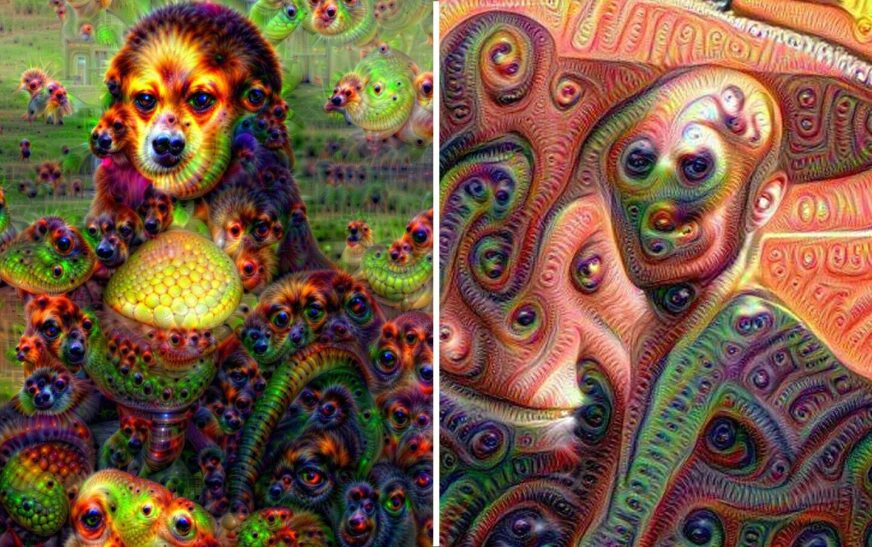
You’ve typed in a prompt, hit generate, and… what even is that? Your AI art looks weird—distorted faces, melted hands, surreal backgrounds that make no sense. You’re not alone. Thousands of creators face the same frustration daily. The good news? It’s almost always fixable. The secret lies not in the AI tool itself, but in how you write your prompt. If your AI-generated images look off, the root cause is usually a poorly structured or vague prompt. This guide will show you exactly why your AI art looks weird and how to fix the prompt to get stunning, coherent results every time.
What Makes AI Art Look “Weird” in the First Place?
AI image generators like MidJourney, DALL·E, or Stable Diffusion are powerful, but they’re not mind readers. They interpret your text based on patterns learned from billions of images and captions. When your prompt is unclear, contradictory, or too abstract, the AI fills in the gaps—often with bizarre, surreal, or downright unsettling results.
Common signs your AI art looks weird include:
- Extra limbs or fused body parts
- Unnatural lighting or color shifts
- Objects floating or melting
- Faces with mismatched features
- Textures that don’t match the scene
These issues aren’t bugs—they’re symptoms of miscommunication between you and the AI. The model tries its best, but without precise instructions, it guesses. And guesses in AI art often lead to the uncanny valley.
The Role of Training Data in Weird AI Outputs
AI models are trained on massive datasets scraped from the internet. These datasets contain millions of images paired with captions—but they’re not always accurate or consistent. If a photo of a “robot cat” was labeled as “futuristic pet,” the AI might blend robotic and feline features in strange ways when you ask for a “futuristic pet.”
This means the AI doesn’t “understand” your intent—it predicts what image best matches your words based on statistical patterns. If your prompt is ambiguous, the AI leans on the most common associations, which may not align with your vision.
Why Your Prompt Is the Real Culprit
Most people treat AI prompts like search queries: short, casual, and open-ended. But AI art generation demands precision. A vague prompt like “a beautiful woman in a forest” might return anything from a photorealistic portrait to a fairy-tale monster with glowing eyes and tree-like skin.
Here’s why your prompt is likely causing your AI art to look weird:
1. Lack of Specificity
AI thrives on detail. The more specific you are, the better the output. Instead of “a cat,” try “a fluffy orange tabby cat sitting on a windowsill, sunlight streaming through the glass, realistic fur texture, soft bokeh background.”
Specificity reduces ambiguity. It tells the AI exactly what to prioritize: fur texture, lighting, composition, and mood.
2. Contradictory or Overloaded Instructions
Mixing too many styles or concepts in one prompt confuses the AI. For example: “a cyberpunk samurai in a medieval castle, painted in watercolor, with neon lights and dragons.”
The AI tries to blend cyberpunk (futuristic, tech-heavy) with medieval (historical, rustic), watercolor (soft, artistic), and dragons (fantasy). The result? A chaotic mess.
Solution: Focus on one dominant style or theme. Use modifiers to refine, not contradict.
3. Ignoring Composition and Perspective
AI doesn’t inherently understand camera angles, depth of field, or rule of thirds. If you don’t specify, it may place subjects awkwardly or flatten the scene.
Try adding terms like:
- “wide-angle shot”
- “close-up portrait”
- “bird’s-eye view”
- “shallow depth of field”
These cues help the AI structure the image more naturally.
4. Overusing Abstract or Emotional Language
Words like “dreamy,” “mysterious,” or “surreal” are subjective. What’s dreamy to you might be blurry or foggy to the AI. Instead, describe the visual effect: “soft focus, pastel colors, floating petals, ethereal glow.”
Concrete descriptors yield more predictable results than emotional adjectives.
How to Fix Your Prompt: A Step-by-Step Guide
Now that you know why your AI art looks weird, let’s fix it. Follow this proven prompt structure to generate clean, high-quality images every time.
Step 1: Define the Subject Clearly
Start with the main subject. Be specific about what it is, its appearance, and its action.
Bad: “a person”
Good: “a young woman with curly black hair, wearing a red coat, walking confidently”
The more visual detail, the better. Include age, clothing, expression, and posture if relevant.
Step 2: Set the Scene and Environment
Where is the subject? Describe the location, time of day, and weather.
Examples:
- “in a rainy Tokyo street at night, neon signs reflecting on wet pavement”
- “in a sunlit meadow during golden hour, wildflowers swaying in the breeze”
This gives the AI context for lighting, mood, and background elements.
Step 3: Specify the Style and Medium
Tell the AI how you want the image rendered. Are you going for realism, illustration, oil painting, or 3D render?
Use terms like:
- “photorealistic, 85mm lens, f/1.8”
- “Studio Ghibli-style animation”
- “oil painting, impressionist brushstrokes”
- “low-poly 3D render, pastel colors”
Style keywords anchor the AI’s interpretation and prevent style drift.
Step 4: Add Lighting and Atmosphere
Lighting dramatically affects mood and realism. Specify:
- “dramatic chiaroscuro lighting”
- “soft diffused sunlight”
- “neon glow with volumetric fog”
- “moonlit scene with cool blue tones”
Atmosphere terms like “misty,” “hazy,” or “crisp” also help set the tone.
Step 5: Include Composition and Camera Details
Guide the framing and perspective:
- “close-up portrait, rule of thirds”
- “wide landscape shot, symmetrical composition”
- “dynamic angle, Dutch tilt”
These cues help the AI avoid awkward cropping or unbalanced layouts.
Step 6: Use Negative Prompts (If Supported)
Many AI tools allow negative prompts—words you don’t want in the image.
For example, if you’re generating a portrait, add:
“no extra fingers, no distorted face, no blurry eyes, no warped hands”
This actively prevents common weirdness like mutated limbs or facial distortions.
Real-World Examples: Before and After
Let’s see how a weak prompt becomes a strong one.
Example 1: Portrait
Before: “a woman smiling”
After: “a 30-year-old woman with warm brown eyes and wavy auburn hair, wearing a cream sweater, soft natural lighting, close-up portrait, photorealistic, shallow depth of field, no makeup, genuine smile”
Result: The first prompt might return a distorted face or odd expression. The second yields a lifelike, emotionally resonant portrait.
Example 2: Fantasy Scene
Before: “a dragon in a forest”
After: “a majestic emerald dragon with iridescent scales, perched on a mossy rock in an ancient enchanted forest, morning mist rising between towering trees, fantasy illustration style, inspired by Arthur Rackham, cinematic lighting”
The improved prompt eliminates ambiguity and guides the AI toward a cohesive, visually rich scene.
Advanced Tips to Eliminate Weirdness
Once you’ve mastered the basics, these advanced techniques will take your prompts to the next level.
Use Reference Artists or Styles
Name-dropping artists or studios helps the AI mimic a specific aesthetic.
Examples:
- “in the style of Hayao Miyazaki”
- “reminiscent of Salvador Dalí’s surrealism”
- “inspired by Greg Rutkowski’s fantasy art”
This works especially well in MidJourney and Stable Diffusion.
Leverage Technical Photography Terms
Even if you’re not generating photos, photo terms improve realism:
- “85mm portrait lens, f/1.4”
- “cinematic lighting, anamorphic lens flare”
- “high dynamic range, sharp focus”
These cues help the AI simulate real-world optics and depth.
Iterate and Refine
Don’t expect perfection on the first try. Use the AI’s output as feedback. If hands look weird, add “detailed hands, five fingers” to your prompt. If colors are off, specify “vibrant but natural color palette.”
Think of prompting as a conversation. Each iteration gets you closer to your vision.
Common Mistakes That Make AI Art Look Weird
Even experienced users fall into these traps. Avoid them to keep your art clean and intentional.
1. Overloading with Adjectives
More words ≠ better results. A prompt like “a stunning, magical, enchanting, glowing, sparkling, beautiful fairy” is redundant and confusing.
Pick 2–3 key descriptors and build around them.
2. Ignoring Cultural or Contextual Nuances
AI may misinterpret culturally specific elements. For example, “a traditional Japanese tea ceremony” might include incorrect attire or setting.
Add clarifiers: “a traditional Japanese tea ceremony in a tatami room, woman in kimono, matcha bowl, low wooden table, serene atmosphere.”
3. Assuming the AI Knows Your Intent
You might imagine a “futuristic city” as sleek and minimalist, but the AI could generate a chaotic cyberpunk slum.
Always describe the mood: “clean, minimalist futuristic city with glass towers and flying cars, blue and white color scheme, calm and orderly.”
Key Takeaways
- Your AI art looks weird because the prompt is unclear, vague, or contradictory.
- AI interprets text statistically—precision beats creativity in prompts.
- Use specific, visual language: describe what you see, not how you feel.
- Structure your prompt: subject → scene → style → lighting → composition.
- Use negative prompts to block common distortions.
- Iterate based on results—prompting is a skill that improves with practice.
FAQ
Why does my AI art have extra fingers or distorted faces?
This happens when the AI struggles to interpret human anatomy from limited or ambiguous prompts. To fix it, add terms like “five fingers,” “realistic hands,” or “anatomically correct” and use negative prompts to exclude distortions.
Can I fix weird AI art after it’s generated?
Some tools allow inpainting or regeneration with modified prompts, but prevention is better. Always refine your prompt before generating. If the base image is too distorted, start over with a clearer instruction.
Do all AI art tools respond the same way to prompts?
No. MidJourney, DALL·E, and Stable Diffusion have different strengths and keyword sensitivities. What works in one may not work in another. Always test and adapt your prompts per platform.
Final Thoughts
If your AI art looks weird, don’t blame the tool—blame the prompt. The gap between your vision and the output is almost always a communication issue. By writing clearer, more detailed, and structured prompts, you give the AI the guidance it needs to create images that match your imagination.
Think of yourself as a director, not just a user. You’re not asking for “art”—you’re giving instructions for a scene. The more precise your directions, the more stunning the final product.
So next time you generate an image, ask yourself: Did I tell the AI exactly what I want? If not, tweak the prompt. Your future self (and your followers) will thank you.